
Precise Video Cropping: Keep Quality While Editing
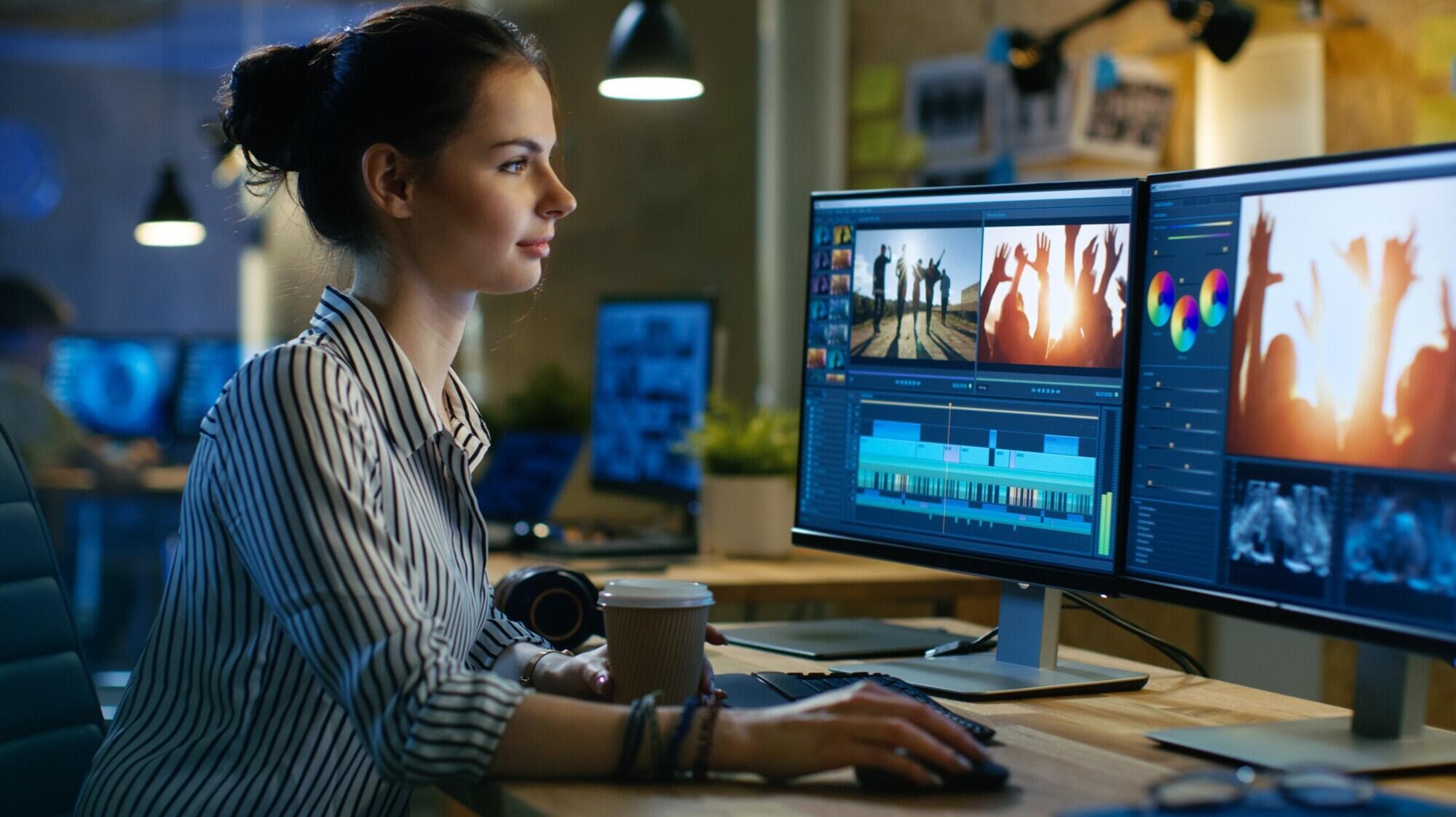
In an time dominated by tech storytelling, video quality has become the invisible handshake between creators and audiences. Whether it’s a 15-second TikTok, a branded YouTube ad, or a cinematic vlog, clarity and framing determine whether viewers stay engaged or scroll past. Yet one of the most common frustrations remains: cropping a video only to discover it looks blurry, pixelated, or oddly stretched. The good news? With the right knowledge, tools, and techniques, you can crop videos precisely—without sacrificing professional quality.
The Importance of Video Cropping
Fundamentally, video cropping is about visual focus. By trimming away distractions, you can highlight the subject and guide your audience’s attention to the elements that matter most. Cropping also serves a practical role in aligning content with the technical and stylistic needs of different platforms.
- Focus: Remove clutter, background distractions, or unwanted details that dilute your message.
- Framing: Ensure the subject remains centered or positioned according to compositional rules like the rule of thirds.
- Platform Fit: Adapt content for different aspect ratios—16:9 for YouTube, 9:16 for TikTok, or 1:1 for Instagram posts.
According to a 2023 Wyzowl survey on video marketing, 91% of businesses use video as a marketing tool, and one of the top challenges cited was “making content fit multiple platforms without losing quality.” Cropping is one of the keys to solving that challenge.
Understanding Video Resolution
Resolution determines how crisp your video appears. The higher the resolution, the more flexibility you have when cropping:
- 4K (3840×2160): Perfect for heavy cropping—still delivers crisp output for HD and social media.
- 1080p (1920×1080): Standard high-definition, fine for moderate cropping.
- 720p and below: Cropping risks noticeable blurriness and pixelation.
As Michael Rubin, Tech Imaging Researcher at MIT Media Lab, explains:
“Resolution acts like a safety net. The more pixels you start with, the more room you have to crop without degrading clarity.”
Practical takeaway: always record or get the highest resolution source possible, even if you plan to distribute in smaller formats.
Making use of an Online Video Cropper
An online video cropper is a simple tool that helps make the editing process fast and easy. They remove the need for bulky downloads while offering intuitive interfaces. Popular options include:
- Kapwing Video Cropper – browser-based, supports collaborative editing.
- Clideo – simple, fast, supports aspect ratio presets for social media.
- Canva Video Editor – combines cropping with design elements like overlays and text.
Most online croppers allow previews before export and offer export options up to 1080p or 4K depending on subscription level. Some even integrate compression algorithms designed to preserve sharpness while reducing file size.
Choosing the Right Tool for the Job
Not all tools are created equal. Choosing the right one depends on your priorities:
- For Speed: Simple drag-and-drop editors like Clideo work best.
- For Professional Control: Advanced platforms such as Adobe Premiere Pro or DaVinci Solve allow precise pixel-level cropping and masking.
- For Mobile Editing: Apps like InShot and VN Editor offer high-quality cropping on the go.
Laura Chen, Senior Video Producer at BuzzFeed, notes:
“The tool you choose should match your end aim. If you’re publishing to Instagram Stories, you need quick presets. If it’s for a corporate campaign, precision editing is worth the extra time.”
Step-by-Step Cropping Process
- Upload your video into the tool of choice.
- Select the cropping frame or input dimensions manually.
- Adjust the frame, ensuring the subject is centered or aligned with visual guides.
- Preview the cropped video in motion—watching static previews can miss issues like cut-off movement.
- Export in the highest resolution available, using settings like H.264 or HEVC for efficiency.
Adobe’s official guide to cropping video provides deeper technical walkthroughs for pro-level software.
Maintaining Quality While Cropping
To avoid sacrificing quality:
- Work from a copy of the original file to prevent irreversible errors.
- Crop conservatively—avoid cutting away more than 30-40% of the frame unless absolutely necessary.
- Match output resolution to platform requirements (e.g., 1080×1920 for TikTok).
- Always preview across multiple devices to ensure the final result looks consistent.
A Streaming Media report highlights that over 60% of viewers abandon videos if resolution appears blurry in the first 10 seconds—underscoring the need for quality control.
Benefits of Precise Cropping for Platforms
Each platform has its quirks. Understanding them is essential:
| Platform | Preferred Ratio | Notes |
|---|---|---|
| YouTube | 16:9 | Best for widescreen, cinematic feel. |
| Instagram Feed | 1:1 | Square format grabs attention in scroll-heavy environments. |
| Instagram Stories / TikTok | 9:16 | Vertical storytelling optimized for mobile use. |
| 16:9, 1:1, 4:5 | Supports multiple ratios—choose based on placement. |
Correct platform-specific cropping directly influences watch times and engagement metrics. A Sprout Social study found vertical videos on Facebook generated 2x higher completion rates compared to horizontal formats.
Common Mistakes to Avoid
- Over-cropping: Cutting away critical visual elements.
- Ignoring Resolution: Starting with low-resolution files that degrade quickly.
- Excess Compression: Using tools that shrink file size at the expense of detail.
- Skipping Previews: Failing to check motion sequences before publishing.
These errors often separate polished content from amateur-looking results. Avoiding them means building a reputation for professionalism.
Tools for Further Enhancements
Cropping is often just the first step in video editing. After trimming the frame, you can use extra tools to make your video look even better. Color correction helps improve brightness and contrast, while audio editing makes sound clearer.
Adding subtitles or captions can also help more people enjoy your content, especially if they watch with the sound off. Professional editors often use advanced programs like Adobe Premiere Pro or Final Cut Pro. For beginners, simpler apps like Canva or InShot are easy to use. These tools allow you to improve your videos after cropping.
Philosophical Implication: Framing as Storytelling
Cropping is not only a technical adjustment—it’s an act of storytelling. Choosing what to include and exclude determines the narrative. Just as painters frame a canvas to focus on a subject, videographers crop to guide interpretation. In this sense, cropping is not merely about quality control but about shaping perception.
Werner Herzog once remarked:
“The frame is a cage of meaning.”
In video editing, cropping is how you mold that cage to tell the story you want.
Wrapping It Up
Video cropping is more than a technical tweak—it’s a make that blends precision, storytelling, and platform strategy. By understanding resolution, leveraging the right tools, and avoiding common pitfalls, creators can produce sharp, compelling content tailored to any screen. When executed well, cropping enhances clarity, drives engagement, and elevates a video from ordinary to extraordinary.
The next time you crop, remember: you’re not just trimming pixels—you’re reframing a narrative for maximum impact.

